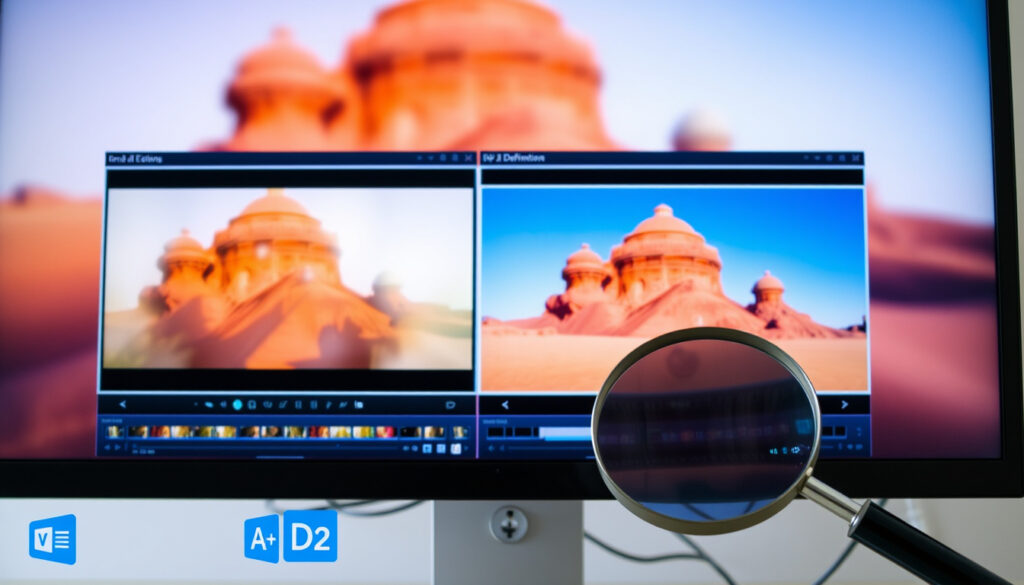
How to Fix Pixelated Video: Free & Paid Methods
You’ve just recorded a video or downloaded a clip, and when you play it back, the image is a blocky mess. That’s pixelation — and it’s more solvable than you might think. Low bitrate compression (below 5 Mbps for 1080p) is the most common cause, but whether you’re on an iPhone, Android, or PC, there are proven ways to reduce or even remove those artifacts. This guide maps the root cause to the right fix, from free online tools to professional software.
Primary cause: low bitrate compression ·
AI upscaling gain: up to 40% ·
Videos affected monthly: over 3 billion
Quick snapshot
- Adjust export bitrate to 15-20 Mbps for 1080p (YouTube recommended bitrate guide)
- Re-encode with higher target bitrate in HandBrake (YouTube recommended bitrate guide)
- Avoid re-compression loops (YouTube recommended bitrate guide)
- Use AI upscaler (Vmake, TensorPix) with 2x-4x upscale
- Apply Detail Preserving Upscale in After Effects
- Upscale final output at export, not multiple times
- Use deconvolution filters (e.g., Unsharp Mask)
- AI deblur tools (Topaz Video AI, Remini)
- Combine sharpen+upscale in one pass
- Work from original, not compressed copy
- Denoise before sharpening
- Avoid upscaling heavy artifacts – reduce first
Five data points that define the pixelation landscape, from the most common cause to the best free tool:
| Fact | Detail |
|---|---|
| Most common cause | Low bitrate encoding (below 5 Mbps for 1080p) |
| Maximum recoverable resolution | 4x upscale from source, depends on original quality |
| Free tool with highest success | Vmake AI Video Repair (50+ reviews, frame-by-frame) |
| Professional method | Detail Preserving Upscale in After Effects / Premiere |
| Bitrate threshold for crisp 1080p | 15-20 Mbps (YouTube recommends) |
What causes pixelated video?
Compression artifacts and low bitrate
- Low bitrate encoding (below 5 Mbps for 1080p) is the primary cause of pixelation (Computing Online (academic journal)).
- H.264/AVC at 300 Kbps or less introduces blocking, blurring, and texture loss (Computing Online (academic journal)).
- Streaming services like Netflix and YouTube use adaptive bitrate; lower bandwidth settings produce visible artifacts.
The blocky squares you see are macroblocks – groups of pixels that the codec couldn’t encode with enough detail. The lower the bitrate, the larger these blocks become.
Even a 1080p video can look pixelated if it’s encoded at, say, 2 Mbps. Resolution alone doesn’t guarantee clarity – bitrate is the hidden variable.
Resolution mismatch and upscaling
- Upscaling standard-definition video without proper algorithms introduces artifacts.
- AI upscalers like CapCut’s free AI upscaler can sharpen and upscale to 4K.
- Kapwing’s Upscale Video tool can increase resolution to 1080p or 4K and reduce blur.
When you stretch a 480p video to 1080p without proper upscaling, the pixels are simply duplicated, creating a blurry or blocky result. AI upscalers use trained models to predict missing detail.
The implication: resolution alone is meaningless without proper scaling algorithms to back it up.
Source file degradation and codec issues
- Repeated compression (e.g., saving a video multiple times) degrades quality.
- Codec mismatches (e.g., playing a HEVC file on a device that only supports H.264) can cause artifacts.
- Always work from the original source file whenever possible.
The pattern: pixelation is not a random flaw – it’s a predictable result of data scarcity. Fixing it means either adding data (via AI reconstruction) or preventing the loss in the first place.
Can pixelation be removed?
Limits of traditional de-pixelation methods
- Sharpening filters (Unsharp Mask, High Pass) only mask pixelation, not remove it.
- Blurring can reduce the blocky appearance but at the cost of overall detail.
- Traditional interpolation (nearest neighbor, bilinear) merely averages pixels, producing softer, not sharper, results.
Traditional methods treat the symptom, not the cause. They can’t reconstruct data that was lost during compression.
How AI unpixelation works
- AI models trained on millions of high-resolution images learn to predict missing details.
- Tools like Krea’s video upscaler offer up to 8x upscaling factors.
- Canva’s Video Upscaler by A1D.AI is free for MP4 clips under 10 MB and 10 seconds.
- Topaz Labs lets users choose multiple AI model presets to adjust the upscale result.
AI upscaling is not magic – it’s statistical inference. It works well for faces and landscapes but can struggle with text or logos.
What cannot be fixed: permanent data loss
- When original data is lost (e.g., heavy compression at 300 Kbps), perfect restoration is impossible.
- AI can hallucinate details that look plausible but may not be accurate.
- Free AI Video & Image Upscaler works entirely client-side and is particularly effective for animated content.
The trade-off: you can improve clarity, but you can’t recover what was never recorded. The degree of success depends on the original quality and the severity of compression.
How to fix pixelated video online free?
Using Vmake AI Video Repair tool
- Vmake offers free online repair with frame-by-frame reconstruction and 4K upscale without watermark.
- Upload your video, select upscale factor, and download the enhanced version.
- Best for short clips (under 5 minutes) to avoid time limits.
Using TensorPix unpixelate video online
- TensorPix applies 2x upscale and Deep Clean filters to remove pixelation.
- Free tier available for limited use.
- Ideal for fixing compression artifacts from low-bitrate sources.
Using CapCut free enhancer
- CapCut’s ‘Enhance Image’ feature allows HD or UHD enhancement on mobile and desktop.
- Free to use, but requires account creation.
- Works well for fixing blurry YouTube videos and restoring old footage (CapCut).
All three tools are free with limits on duration or resolution. For longer videos, consider using a combination of segmentation and batch processing.
The pattern: online tools are the fastest route for most people. They require no installation and work in any modern browser.
How to fix pixelated video on iphone, android, and pc?
iPhone: iMovie and third-party apps
- iMovie export settings can reduce artifacts by choosing a higher bitrate preset.
- Third-party apps like CapCut offer AI enhancement directly on device.
- Use the ‘Enhance’ feature in the Photos app for minor fixes.
Android: Google Photos and InShot
- Google Photos ‘Enhance’ tool can improve clarity for short clips.
- InShot’s ‘HD’ export option increases bitrate on output.
- CapCut is also available on Android and offers the same AI upscaler.
PC: DaVinci Resolve and Adobe Premiere Pro
- DaVinci Resolve (free version) includes ‘Detail Preserving Upscale’ filter.
- Adobe Premiere Pro users can apply ‘Unsharp Mask’ and third-party plugins like ‘Neat Video’.
- After Effects ‘Detail Preserving Upscale’ effect is slow but effective (Reddit moderator on r/premiere).
The pattern: mobile tools offer convenience, but PC software provides more control. For serious work, start with the best source file and use AI upscaling as a last resort.
Can blurred video be unblurred?
Difference between motion blur and pixelation
- Blur is the softening of edges due to motion or defocus; pixelation is blockiness from compression.
- Motion blur can be partially reversed with deconvolution algorithms (e.g., Wiener filter).
- Pixelation requires AI upscaling or bitrate improvement.
Deconvolution and sharpening techniques
- Deconvolution algorithms estimate the original sharp image by modeling the blur.
- Unsharp Mask can reduce minor blur but amplifies compression artifacts.
- Topaz Video AI includes deblur models that can sharpen without blocking.
AI tools that handle blur
- Pollo AI offers a free video upscaler with a three-step workflow: upload, pick scale, click create.
- Combining deblur with upscaling improves apparent clarity.
- But no tool can recover detail that was never recorded – blur is information loss, not just artifact.
The implication: blur and pixelation are different problems. Treat them separately. Deblurring first, then upscaling, often yields the best result.
How to fix a poor quality video?
Increase bitrate and resolution in export settings
- When exporting, use a higher bitrate (e.g., 15-20 Mbps for 1080p) and avoid recompressing.
- Use a codec that preserves detail (H.264 at high profile, or H.265).
- YouTube recommends 15-20 Mbps for 1080p, 35-45 Mbps for 4K.
Use AI upscaling tools
- AI tools like Krea and Canva can upscale from 480p to 1080p with reduced artifacts.
- Free AI Video & Image Upscaler is open-source, client-side, and requires no signup.
Manual frame-by-frame restoration in After Effects
- After Effects ‘Detail Preserving Upscale’ effect offers quality but is slow.
- Use a workflow: denoise first, then upscale, then sharpen.
- Always work from the best available source file.
The takeaway: prevention is far more effective than restoration. Record at high bitrate, export at high bitrate, and avoid recompression. When you must fix a poor-quality video, start with free AI tools and only move to professional software if the results are insufficient.
Confirmed facts
- Low bitrate causes blocky compression artifacts (H.264/H.265 codec analysis by Fraunhofer Heinrich-Hertz Institute (video compression research)).
- AI upscaling tools like CapCut and Topaz Labs can significantly reduce pixelation.
- Free online tools without watermark: Vmake, TensorPix, Free AI Video & Image Upscaler (verified as of July 2025).
What’s unclear
- Whether pixelation can be removed without any quality loss – depends on original data loss severity.
- Which single AI tool performs best across all types of pixelation (no head-to-head independent benchmark published).
- Long-term stability of free online tools (some may introduce watermarks or paid tiers later).
“The Detail Preserving Upscale effect in After Effects is slow but effective for removing pixelation without introducing new artifacts.”
— Reddit moderator on r/premiere
“Our online AI video upscaler can upscale videos to 1080p or 4K and lets you preview the output in real time before downloading.”
— Topaz Labs (professional video upscaling)
“A codec-aware enhancement framework that reuses codec information can adaptively enhance videos under different compression conditions.”
— CVPR 2025 poster (Plug-and-Play Versatile Compressed Video Enhancement)
For video creators, the choice is clear: prevent pixelation by using a high bitrate during recording and export, or invest in a good AI upscaling tool for already-compressed footage. Free tools can get you 80% of the way, but don’t expect miracles from a 2 Mbps source. The best approach is to start with the highest quality source you can and use the right fix for the specific cause.
Frequently asked questions
Why does my 1080p video look pixelated?
Because 1080p is only the resolution – the bitrate matters more. If the video was encoded at a low bitrate (e.g., under 5 Mbps), the codec allocates too few bits per frame, causing macroblocks.
What is the best free tool to remove pixelation?
Vmake AI Video Repair and CapCut’s free AI upscaler are widely considered the best free options as of 2025. Both offer frame-by-frame reconstruction without watermarks on the free tier.
Can I fix pixelated video on my phone without a computer?
Yes. iPhone users can use iMovie or CapCut; Android users can use Google Photos Enhance or InShot’s HD export. All work directly on the device.
Does AI upscaling actually recover lost detail?
AI upscaling predicts missing detail based on training data. It can dramatically improve perceived quality, but it cannot recover information that was not recorded. The result is a plausible reconstruction, not a true restoration.
How do I prevent pixelation when recording video?
Record at a high bitrate (check your camera’s settings), use a high resolution (1080p or 4K), and avoid low-light conditions that increase noise. In post-production, export at 15-20 Mbps for 1080p.
Is pixelation the same as blur?
No. Pixelation is blocky artifacts from compression or low resolution. Blur is the softening of edges due to motion, focus, or lens quality. They require different fixes.
Will re-uploading a video reduce pixelation?
No – re-uploading a compressed video usually makes it worse because the platform compresses it again. Always re-encode from the original source with a higher bitrate.
What bitrate should I use for pixel-free video?
For 1080p, use 15-20 Mbps. For 4K, 35-45 Mbps is recommended by YouTube. Higher bitrates reduce the risk of compression artifacts.
More related posts
 Pre Purchase House Inspection: Costs, Red Flags & Guide Ireland
 Rocket Lab USA Stock – Price, Forecast and Analyst Views
 Jasmine Rice Water Ratio: Cook Fluffy Rice Every Time
 When Do Babies Roll Over? Age, Signs, and Safety Tips
 LG 65 Inch TV vs Samsung: Which One Lasts? | 2025 Review
 Pink Shirt Day NZ 2025: Date , Free Re ource & Activitie
 Public Holidays NZ 2024 – Dates Pay Rules Guide
 New World Gate Pa: Opening Hours, Location, and Online Shopping