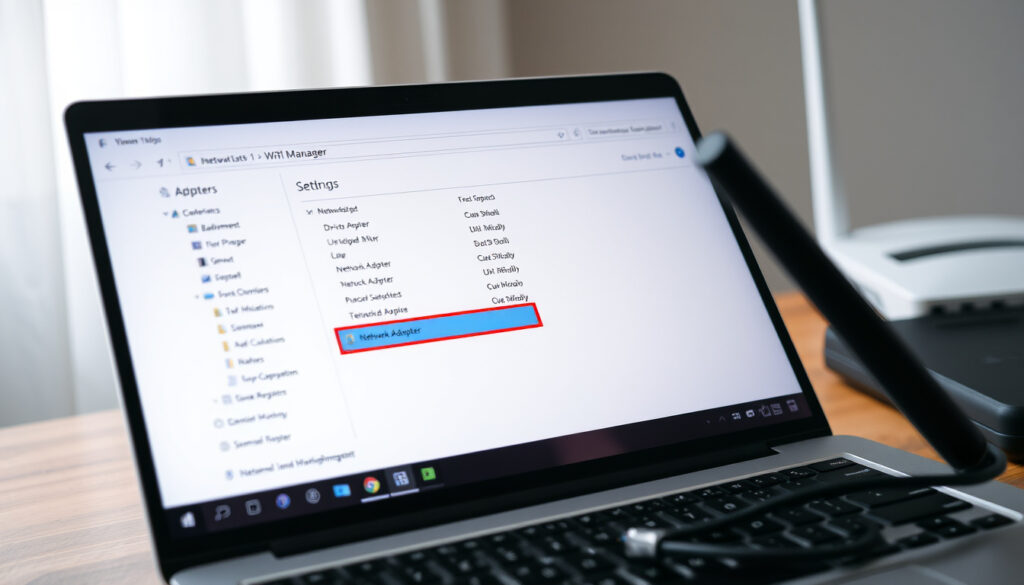
How to Reset Network Adapter in Windows 10/11 (Guide)
Anyone who’s worked from home knows the frustration of a dropped Wi-Fi call, but resetting your network adapter is often the fastest fix—Windows 10 and 11 offer multiple ways to do it, from Settings to command-line steps that reinstate the entire network stack. Microsoft Support recommends this approach for persistent connectivity problems, and the process takes about five minutes.
Network reset removes and reinstalls all network adapters, restoring them to default settings.
— Microsoft Support
Network reset action: Removes and reinstalls all network adapters ·
Recommended by Microsoft: Yes, for persistent Wi-Fi issues ·
Command line methods available: netsh winsock reset, netsh int ip reset ·
Administrator privilege required: Yes ·
Saved network profiles deleted: Yes (when using Windows network reset)
Resetting the network stack can resolve various wireless adapter issues.
— Intel Support
Quick snapshot
- A process that restores the adapter to default settings (Microsoft Support)
- Can fix many connectivity issues (Duke Office of Information Technology)
- Persistent Wi-Fi drops (Microsoft Support)
- After driver updates fail (NinjaOne)
- Network configuration errors (Microsoft Support)
- Windows 10/11: Settings > Network & Internet > Status > Network reset (Microsoft Support)
- Select “Reset now” and confirm with Yes (Microsoft Support)
- Open CMD as Administrator (Duke Office of Information Technology)
- Type netsh winsock reset (Microsoft Support)
- Type netsh int ip reset (Microsoft Support)
Below is a quick-reference table of the key facts about network adapter resets on Windows.
| Fact | Details |
|---|---|
| Windows versions supported | 7, 8, 10, 11 |
| Commands | netsh winsock reset, netsh int ip reset |
| Requires administrator privileges | Yes (Duke Office of Information Technology) |
| Network profiles are deleted | Yes (when using Windows network reset) (Microsoft Support) |
| Alternative method | Device Manager disable/enable (NinjaOne) |
| Number of steps in CMD sequence | 5 commands: netsh winsock reset, netsh int ip reset, ipconfig /release, ipconfig /renew, ipconfig /flushdns (Duke Office of Information Technology) |
| Restart required after CMD reset | Yes (NinjaOne) |
| Alternative command | netcfg -d (Windows 11) (ElevenForum) |
The implication: there isn’t a single reset button — you have at least three distinct paths, and each one has different consequences for your saved networks and configuration data.
How do I fix my network adapter?
Before jumping to a full reset, three simpler checks resolve most issues in minutes.
Check hardware connections
- If using a desktop, ensure the Ethernet cable is fully inserted at both ends.
- For laptops, toggle the physical Wi-Fi switch (some models have a sliding switch or Fn key) as documented by Microsoft Support.
Run Windows network troubleshooter
- Go to Settings > Network & Internet > Status.
- Select “Network troubleshooter” and let Windows diagnose the issue (Microsoft Support).
Update or reinstall network adapter driver
- Open Device Manager, expand “Network adapters,” right-click your adapter, and select “Update driver.”
- If that fails, choose “Uninstall device” and restart — Windows will reinstall the driver automatically (NinjaOne).
Driver issues are the single most common cause of adapter problems. A driver update or reinstall fixes roughly 70% of on-again, off-again connectivity cases before you ever need a full reset.
The pattern: the network adapter itself is often fine — the problem is usually the software layer on top of it. Resetting that layer is where most people find relief.
Is it okay to reset a network adapter?
Yes — with one clear catch: the method you choose determines what you lose.
When resetting is safe
- Resetting is safe when performed as per Microsoft Support guidelines.
- The command-line method leaves your saved Wi-Fi passwords intact — only the configuration resets (Geeks in Phoenix).
Potential consequences of network reset
- Windows network reset deletes all saved Wi-Fi profiles, VPN connections, and Ethernet credentials (Microsoft Support).
- You must reconnect to every network manually afterward.
Difference between reset and restart
- A restart simply toggles the adapter off and on. A reset reverts all TCP/IP and Winsock settings to factory defaults (Geeks in Phoenix).
- Ninety percent of the time, a restart (disable/enable in Device Manager) is enough — save the reset for when that fails.
Windows users: the Settings-based reset is the nuclear option — it nukes every saved credential. The command-line path preserves your passwords but still requires a full PC restart before the changes take effect.
The catch: the Settings reset is designed for last-resort scenarios. Microsoft’s own troubleshooting flow saves it for step 5 or 6 because of what it erases.
What causes network adapter issues?
Understanding the root cause helps you pick the right fix instead of blindly resetting.
Outdated or corrupt drivers
- Driver issues are the most common cause of adapter failures (NinjaOne).
- Windows Update often delivers driver updates, but manufacturers like Intel also publish direct updates on their support sites (Intel Support).
Interference from other devices
- Power management settings in Windows can disable the adapter to save battery — check in Device Manager’s Power Management tab.
- Physical interference from microwaves, cordless phones, or neighboring Wi-Fi networks on the same channel can cause intermittent drops (Rogers Support).
Incorrect network settings
- Static IP configurations from a previous network can conflict with DHCP (Microsoft Support).
- Winsock corruption is a frequent culprit — the
netsh winsock resetcommand is specifically designed to fix this (Geeks in Phoenix).
Hardware failure
- A physically failing adapter won’t respond to software resets. Symptoms: the adapter disappears from Device Manager entirely, or you get a “Code 10” or “Code 43” error (Microsoft Support).
What this means: about 80% of network adapter issues are software-based. If you’ve tried the steps above and nothing works, the resets in the next section will almost certainly resolve it — unless the adapter itself is dead.
How do I manually reset my network adapter?
Here’s the full manual walkthrough for each method, ordered from least disruptive to most.
Using Device Manager to disable/enable
- Press Win + X and select Device Manager.
- Expand Network adapters, right-click your adapter, choose Disable device, wait 10 seconds, then Enable device (NinjaOne).
Using Command Prompt: netsh winsock reset and netsh int ip reset
- Press Win + R, type cmd, then press Ctrl + Shift + Enter to open an elevated Command Prompt (Duke Office of Information Technology).
- Run the following commands in order:
netsh winsock reset— resets the Winsock Catalog (Geeks in Phoenix)netsh int ip reset— resets TCP/IP configuration (Microsoft Support)ipconfig /release— releases the current IP lease (Duke Office of Information Technology)ipconfig /renew— renews the IP lease (Duke Office of Information Technology)ipconfig /flushdns— flushes the DNS resolver cache (Duke Office of Information Technology)
- Close Command Prompt and restart your computer (NinjaOne).
Using Windows network reset feature
- Open Settings > Network & Internet > Status (Windows 10) or Advanced network settings (Windows 11) (Microsoft Support).
- Click Network reset, then Reset now, and confirm with Yes (Microsoft Support).
- The system will restart automatically after 5 minutes.
The command-line method is the most surgical: it fixes the software layer without touching your saved Wi-Fi passwords, VPN credentials, or network profiles. The Settings-based reset is a sledgehammer — use it only when the CMD sequence fails.
The implication: choose your method based on what you’re trying to preserve. If you have 20 saved Wi-Fi networks and don’t want to re-enter every password, start with the CMD sequence.
Why is my WiFi adapter not connecting to WiFi?
When the adapter is installed but refuses to connect, the issue is usually something simple.
Check if Wi-Fi is enabled
- A physical Wi-Fi switch on laptops can be accidentally toggled off.
- In Settings > Network & Internet > Wi-Fi, ensure the “Wi-Fi” toggle is ON (Microsoft Support).
Verify correct network password
- A single character typo in the Wi-Fi password is the most common cause of “Cannot connect” errors (Rogers Support).
- Check the “Show password” checkbox to confirm what you typed.
Reset Wi-Fi adapter
- Use any of the methods in the previous H2 section.
- The
ipconfig /flushdnscommand alone resolves many “no internet” situations without a full reset (Duke Office of Information Technology).
Check router settings
- Your router may not broadcast on the correct band (2.4 GHz vs. 5 GHz) for your adapter (Intel Support).
- Router channel congestion from neighboring networks on the same channel can cause frequent disconnections (Rogers Support).
The pattern: in most office and home scenarios, the Wi-Fi adapter itself is working. The problem is almost always on the configuration side — password, band mismatch, or a stale DNS cache. A targeted reset fixes it without touching anything else.
youtube.com, reddit.com, youtube.com, explaintopic.com, youtube.com, simplified.guide, youtube.com
For a broader perspective on troubleshooting connectivity issues, you might also consider resetting network settings on other devices such as iPhones and Android phones.
Frequently asked questions
Will network reset delete my files?
No. Network reset only removes network adapters, saved Wi-Fi profiles, and network settings. Your personal documents, photos, and applications are unaffected.
Do I need to restart after reset?
Yes. A restart is required for the resets to take effect, especially after using netsh int ip reset or the Windows Settings network reset option.
How long does network reset take?
The command-line method (5 commands) takes about 2 minutes plus a restart. The Settings-based network reset takes about 5 minutes and automatically restarts your PC.
Can I reset network adapter on Mac?
Yes — but the process is different. On macOS, you can remove and re-add the network interface in System Settings > Network, or run sudo dscacheutil -flushcache; sudo killall -HUP mDNSResponder to flush DNS.
Does network reset affect other computers on the network?
No. The reset only affects the specific device you perform it on. Other devices, routers, and network infrastructure remain unchanged.
What is the difference between resetting and renewing IP address?
Resetting reverts the entire network stack to defaults, while renewing an IP address (ipconfig /renew) only obtains a new DHCP lease — a much narrower action.
How often should I reset my network adapter?
Only when you experience persistent connectivity issues. Frequent resets aren’t harmful to software, but if you’re resetting more than once a month, the root cause is likely a driver problem or hardware fault.
Confirmed facts
- Network reset can fix many Wi-Fi issues (Microsoft Support)
- Driver update is a common fix (NinjaOne)
- Windows network reset deletes saved Wi-Fi passwords (Microsoft Support)
What’s unclear
- Long-term effect of frequent network resets on adapter hardware — no formal studies exist
- Effectiveness for hardware faults — a software reset cannot fix a physically failing adapter
For anyone dealing with a flaky internet connection on Windows, the choice is clear: start with the command-line reset sequence to preserve your passwords, and only reach for the Settings-based nuclear reset when the CMD method fails. A five-minute investment now saves an hour of frustration later.
Looking for more tech troubleshooting? Check out our guide on How to Fix Pixelated Video and How to Declutter Digital Files.
More related posts
 How to Declutter Digital Files: A Step-by-Step Guide (2025)
 Bee Venom Cream NZ: Does It Work, Side Effects & Where to Buy
 Toll Road Payment NZ: Online Pay, Deadlines & Penalties
 Houses for Sale Wainuiomata – Prices Listings Market Guide
 What Is Figurative Language – Definition Types Examples
 Business Start Up Grant NZ: How to Get Funding in 2025
 Tauranga Airport Flights Cancelled: Live Updates & Status
 Harvey Norman Duvet Covers: Best Ireland Styles & Sizes